
Domain Randomization#
One of the benefits of simulation is the ability to chop and change a number of aspects that would otherwise be expensive or time-consuming to do in the real world. This document demonstrates a number of simple tools for randomization.
Camera Randomization#
For cameras, which are created by adding mani_skill.sensors.camera.CameraConfig objects to your task’s _default_sensor_configs property, you can randomize the pose and fov across all parallel sub-scenes. This can be done either during reconfiguration or episode initialization.
During Reconfiguration#
Simply providing batched data to the CameraConfigs of your sensors as done below (pose, intrinsic, fov, near, and far are supported) will randomize the camera configuration across parallel scenes. The example below does it for camera poses by modifying the _default_sensor_configs property of the task class
import torch
from mani_skill.envs.utils import randomization
from mani_skill.utils import sapien_utils

class MyCustomTask(BaseEnv):
    # ...
    @property
    def _default_sensor_configs(self):
        pose = sapien_utils.look_at(eye=[0.3, 0, 0.6], target=[-0.1, 0, 0.1])
        pose = Pose.create(pose)
        pose = pose * Pose.create_from_pq(
            p=torch.rand((self.num_envs, 3)) * 0.05 - 0.025,
            q=randomization.random_quaternions(
                n=self.num_envs, device=self.device, bounds=(-np.pi / 24, np.pi / 24)
            ),
        )
        return [CameraConfig("base_camera", pose=pose, width=128, height=128, fov=np.pi / 2, near=0.01, far=100)]
To verify it works you can run the test script here
Test Script
from mani_skill.utils.wrappers import RecordEpisode
from your_env_code import MyCustomTask
env = MyCustomTask(num_envs=16, render_mode="sensors")
env = RecordEpisode(env, "./videos", save_trajectory=False)
env.reset(seed=0)
for _ in range(10):
    env.step(env.action_space.sample())
env.close()
It will generate the following result (for 16 parallel environments) on e.g. the PickCube-v1 task:
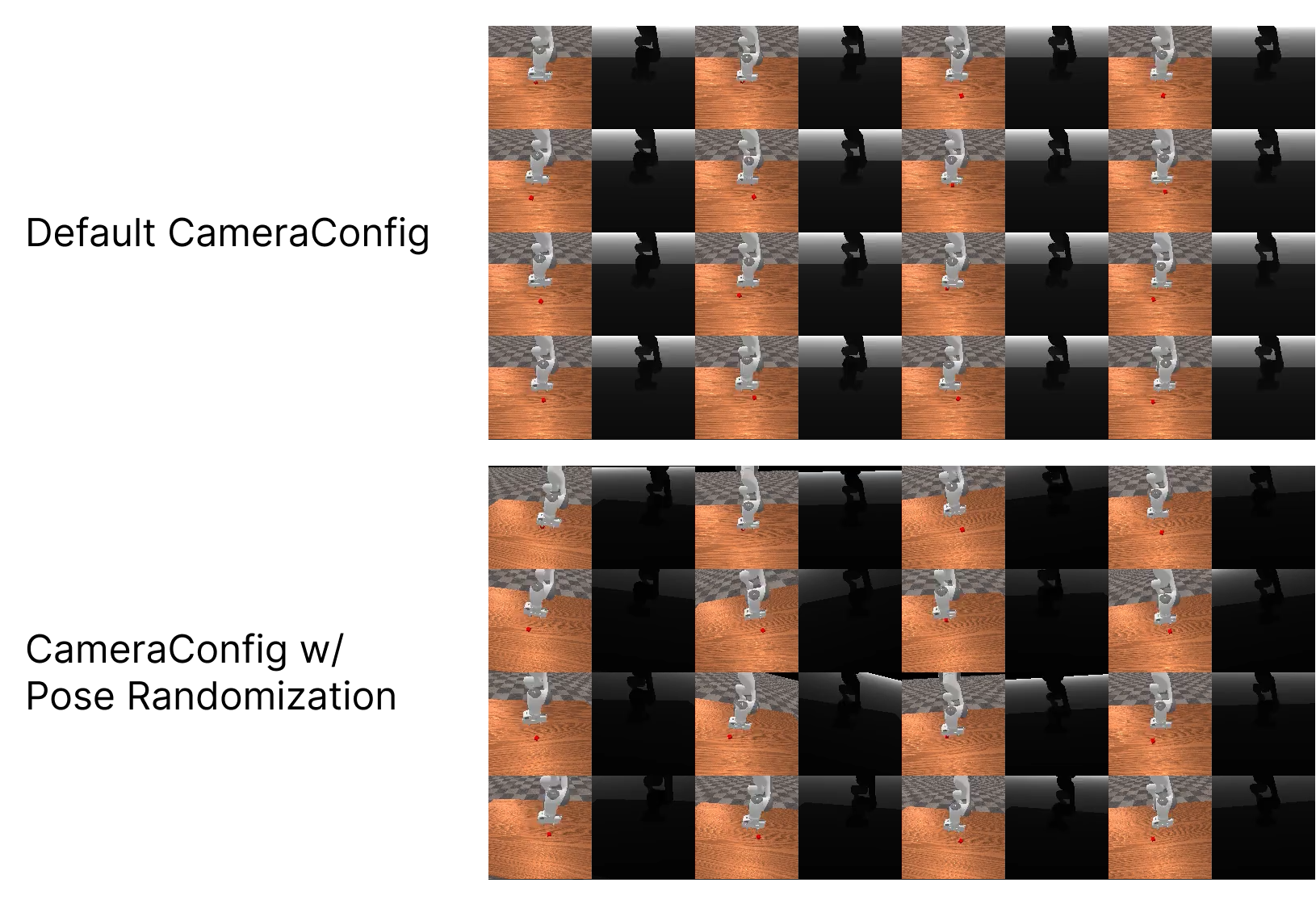
Note that this method of randomization only randomizes during task reconfiguration, not during each episode reset (which calls _initialize_episode). In GPU simulation with enough parallel environments it shouldn’t matter too much if you never reconfigure again, but if you wish you can set a reconfiguration_freq value documented here.
During Episode Initialization / Resets#
Cameras when created cannot have their configurations modified after reconfiguration. Thus it is not possible to randomize the camera’s fov, near, and far configurations outside of reconfiguration. You can however still randomize the camera pose during resets via mounted cameras (albeit this is a little slower than doing just during reconfiguration). To get started, first in your _load_scene function you have to create an actor to represent the camera (which does not need any visual or collision shapes):
def _load_scene(self, options: dict):
    # ... your loading code
    self.cam_mount = self.scene.create_actor_builder().build_kinematic("camera_mount")
Now we can mount our camera by modifying the camera config to specify where to mount it via the mount argument. Note that the pose argument of the camera config is now the local pose, and we simply use sapien.Pose() which gives the identity pose. The world pose of mounted cameras are equal to the pose of mount multiplied by the local pose, meaning we can easily move this camera around during episode initialization instead of during reconfiguration.
import sapien
from mani_skill.sensors.camera import CameraConfig
class MyCustomTask(BaseEnv):
    # ...
    @property
    def _default_sensor_configs(self):
        return [
            CameraConfig(
                "base_camera", pose=sapien.Pose(), width=128, height=128,
                fov=np.pi / 2, near=0.01, far=100,
                mount=self.cam_mount
            )
        ]
Once the camera config is properly defined, we can move the camera mount however we wish in the world and the camera will follow. For camera pose randomization you can copy the code written earlier to randomize camera pose directly into _initialize_episode
import torch
from mani_skill.envs.utils import randomization
from mani_skill.utils import sapien_utils
class MyCustomTask(BaseEnv):
    # ...
    def _initialize_episode(self, env_idx: torch.Tensor, options: dict):
        # ...
        pose = sapien_utils.look_at(eye=[0.3, 0, 0.6], target=[-0.1, 0, 0.1])
        pose = Pose.create(pose)
        pose = pose * Pose.create_from_pq(
            p=torch.rand((self.num_envs, 3)) * 0.05 - 0.025,
            q=randomization.random_quaternions(
                n=self.num_envs, device=self.device, bounds=(-np.pi / 24, np.pi / 24)
            ),
        )
        self.cam_mount.set_pose(pose)
The result is the same as during reconfiguration, but instead every episode reset the camera poses all get randomized. You can also easily add moving cameras that follow the robot itself or move on their own in this manner.
Actor/Link Physical and Visual Randomizations#
By default ManiSkill builds objects the same way in all parallel environments and share the same physical and visual materials due to engine limits and memory optimization purposes. If you want to randomize these materials such that each parallel environment has a different material, you can do so by building each object separately and then merging them together to be accessible under one view/object. We provide an example below for how to build a box shape in each parallel environment separately and then merge them. More details on how to build objects separately per parallel environment and merge them can be found on the documentation for scene masks and object merging.
def _load_scene(self, options: dict):
    # original code might look like this
    # builder = self.scene.create_actor_builder()
    # builder.add_box_collision(half_size=[0.02] * 3)
    # builder.add_box_visual(half_size=[0.02] * 3, material=sapien.render.RenderMaterial(base_color=[1, 0, 0, 1]))
    # self.object = builder.build(name="object")

    # instead we build each object separately, modify them at a per-environment level, and then merge them together
    objects = []
    for i in range(self.num_envs):
        builder = self.scene.create_actor_builder()
        # make any randomizations here on geometry/shape, visual/physical materials etc.
        builder.add_box_collision(half_size=[0.02] * 3)
        builder.add_box_visual(half_size=[0.02] * 3, material=sapien.render.RenderMaterial(base_color=[1, 0, 0, 1]))
        obj = builder.build(name=f"object_{i}") # build each object separately
        self.remove_from_state_dict_registry(obj) # remove the individual object from environment state
        objects.append(obj)
    self.object = Actor.merge(objects, name="object")
    self.add_to_state_dict_registry(self.object) # add the merged object to environment state so you can use env.set_state_dict and env.get_state_dict
You can further change the properties of mani_skill.utils.structs.Actor or mani_skill.utils.structs.Link objects after building them provided they were created separately as shown above by modifying the components of the objects. Note at this granular level all values are expected to be python primitives or numpy based, torch tensors are not used. An example shows how to set values for various material properties of the object.
import numpy as np
from mani_skill.utils.structs import Actor, Link
from sapien.physx import PhysxRigidBodyComponent
from sapien.render import RenderBodyComponent

def _load_scene(self, options: dict):
    # ... other code for loading objects
    # only works on a merged actor/link as created in the example code above
    # or else the changes below will be shared across all objects in parallel environments
    # due to shared material optimizations
    actor: Actor | Link
    for i, obj in enumerate(actor._objs):
        # modify the i-th object which is in parallel environment i

        if isinstance(actor, Link):
            obj = obj.entity
        rigid_body_component: PhysxRigidBodyComponent = obj.find_component_by_type(PhysxRigidBodyComponent)
        if rigid_body_component is not None:
            # modifying physical properties e.g. randomizing mass from 0.1 to 1kg
            # note the use of _batched_episode_rng instead of torch.rand. _batched_episode_rng helps ensure reproducibility in parallel environments.
            rigid_body_component.mass = self._batched_episode_rng[i].uniform(low=0.1, high=1)

            # modifying per collision shape properties such as friction values
            for shape in rigid_body_component.collision_shapes:
                shape.physical_material.dynamic_friction = self._batched_episode_rng[i].uniform(low=0.1, high=0.3)
                shape.physical_material.static_friction = self._batched_episode_rng[i].uniform(low=0.1, high=0.3)
                shape.physical_material.restitution = self._batched_episode_rng[i].uniform(low=0.1, high=0.3)

        render_body_component: RenderBodyComponent = obj.find_component_by_type(RenderBodyComponent)
        for render_shape in render_body_component.render_shapes:
            for part in render_shape.parts:
                # you can change color, use texture files etc.
                part.material.set_base_color(self._batched_episode_rng[i].uniform(low=0., high=1., size=(3, )).tolist() + [1])
                # note that textures must use the sapien.render.RenderTexture2D
                # object which allows passing a texture image file path
                part.material.set_base_color_texture(None)
                part.material.set_normal_texture(None)
                part.material.set_emission_texture(None)
                part.material.set_transmission_texture(None)
                part.material.set_metallic_texture(None)
                part.material.set_roughness_texture(None)
Similarly joints can also be modified in the same manner by iterating over each the ._objs list property of mani_skill.utils.structs.ArticulationJoint objects.
Note that during GPU simulation most physical properties must be set in an environment during the _load_scene function which runs before the GPU simulation initialization. Once the GPU simulation is initialized, some properties are fixed and can only be changed again if the environment is reconfigured.
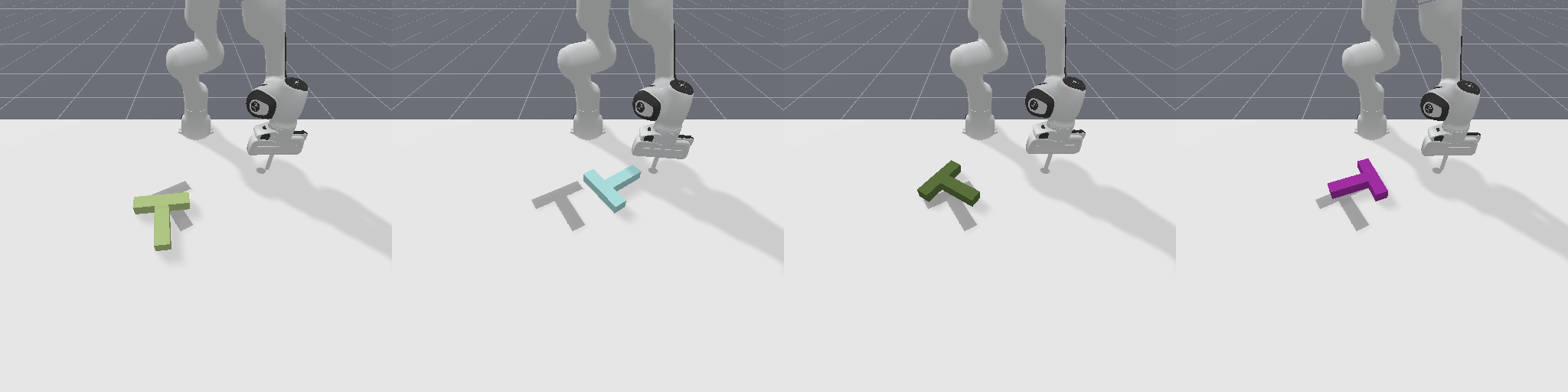
Example of visual randomizations of object colors is shown below for the PushT task.
Agent/Robot and Controller Randomizations#
Agents/Robots and Controllers are abstractions around articulated objects to make it easy to swap controllers and load robots into scenes. Under the hood they have the same components as any other articulation.
Controller randomizations revolve around joint properties like damping/stiffness and friction values. To change each joint in each parallel environment at a granular level you can do the following:
For example in a custom environment when you load the scene
def _load_scene(self, options: dict):
    for joint in self.agent.robot.joints:
        for obj in joint._objs:
            obj.set_drive_properties(stiffness=1000, damping=100, force_limit=1000)
            obj.set_friction(friction=0.5)
The controller randomizations can also be done on the fly after the GPU simulation has initialized (e.g. during the _initialize_episode function). Some controllers may have specific functionalities that can be changed on the fly as well. You can access the currently used controller object of an environment via env.agent.controller and modify that.
Other randomizations of the agent/robot outside of controllers revolve around the robot links itself (e.g. gripper frictions, link render materials) you can do the following
import numpy as np
import sapien
from sapien.physx import PhysxRigidBodyComponent
from sapien.render import RenderBodyComponent

def _load_agent(self, options: dict):
    # in addition to setting agent initial poses you can turn on the option to build each agent separately and merge them which enables per-environment randomizations
    # of all physical and visual properties
    super()._load_agent(options, initial_agent_poses=sapien.Pose(), build_separate=True)


def _load_scene(self, options: dict):
    # iterate over every link in the robot and each managed parallel link and modify the collision shape materials
    # accordingly. Some examples are shown below.
    for link in self.agent.robot.links:
        for i, obj in enumerate(link._objs):
            # modify the i-th object which is in parallel environment i

            # modifying physical properties e.g. randomizing mass from 0.1 to 1kg
            rigid_body_component: PhysxRigidBodyComponent = obj.entity.find_component_by_type(PhysxRigidBodyComponent)
            if rigid_body_component is not None:
                # note the use of _batched_episode_rng instead of torch.rand. _batched_episode_rng helps ensure reproducibility in parallel environments.
                rigid_body_component.mass = self._batched_episode_rng[i].uniform(low=0.1, high=1)

            # modifying per collision shape properties such as friction values
            for shape in obj.collision_shapes:
                shape.physical_material.dynamic_friction = self._batched_episode_rng[i].uniform(low=0.1, high=0.3)
                shape.physical_material.static_friction = self._batched_episode_rng[i].uniform(low=0.1, high=0.3)
                shape.physical_material.restitution = self._batched_episode_rng[i].uniform(low=0.1, high=0.3)

            render_body_component: RenderBodyComponent = obj.entity.find_component_by_type(RenderBodyComponent)
            if render_body_component is not None:
                for render_shape in render_body_component.render_shapes:
                    for part in render_shape.parts:
                        # you can change color, use texture files etc.
                        part.material.set_base_color(self._batched_episode_rng[i].uniform(low=0., high=1., size=(3, )).tolist() + [1])
                        # note that textures must use the sapien.render.RenderTexture2D
                        # object which allows passing a texture image file path
                        part.material.set_base_color_texture(None)
                        part.material.set_normal_texture(None)
                        part.material.set_emission_texture(None)
                        part.material.set_transmission_texture(None)
                        part.material.set_metallic_texture(None)
                        part.material.set_roughness_texture(None)
Lighting/Rendering Randomizations#
You can also modify overall lighting properties of the scene by overriding the default lighting loaded in the task’s _load_lighting function. By default ManiSkill adds ambient light, and two directional lights with shadows disabled. The code below shows an example randomizing just the ambient light applied to the PickCube task during GPU simulation and rendering (using the “default” shader pack).
import numpy as np
def _load_lighting(self, options: dict)
    for scene in self.scene.sub_scenes:
        scene.ambient_light = [np.random.uniform(0.2, 0.6), np.random.uniform(0.2, 0.6), np.random.uniform(0.2, 0.6)]
        scene.add_directional_light([1, 1, -1], [1, 1, 1], shadow=True, shadow_scale=5, shadow_map_size=4096)
        scene.add_directional_light([0, 0, -1], [1, 1, 1])
Note that cameras added to tasks by default use the “minimal” shader pack which has a pure black background. You may want to use a more advanced shader like the “default” shader which does render the background by adding shader_pack="default" to the camera config to more visibly see the randomization effects.
Background / Segmentation based Randomizations#
It is common to randomize the “background” or specific objects of a scene for domain randomization. There are two ways in which you can do this. One is via the task building APIs in ManiSkill, the other is do apply green-screening to outputted images by ManiSkill environments based on segmentation masks.
Via Task Building APIs#
Without green-screening you can simply modify object textures directly in the _load_scene function of your custom task. See the section above on Actor/Link Visual Randomizations for more details. You can change color, textures and more. This is a simple and flexible way to randomize object textures as you do not need to deal with finding segmentation masks.
Green Screening#
ManiSkill environments provide access to segmentation mask IDs via the per_scene_id of mani_skill.utils.structs.Actor and mani_skill.utils.structs.Link objects. Note that the ID 0 is reserved for the background. After collecting the IDs of all entities you wish to green-screen out with an image/video, you need to generate a segmentation mask in addition to the image data.
For sensor observations this can be done by ensuring you are using any observation mode that includes “segmentation” in the, which can be done by changing the obs_mode argument of gym.make. For example “rgb+segmentation” will output both RGB and segmentation images in environment observations returned by calls to env.reset and env.step.
Example code segmenting out the background and overlaying a green screen image is shown below.
import mani_skill.envs
import gymnasium as gym
import torch
import cv2
import matplotlib.pyplot as plt
env = gym.make("PickCube-v1", obs_mode="rgb+segmentation")
# get obs from reset
obs, _ = env.reset()
# get obs from step
obs, reward, terminated, truncated, info = env.step(env.action_space.sample())
your_image = cv2.resize(cv2.imread("path/to/your/image"), (128, 128))
green_screen_image = torch.from_numpy(your_image).to(device=env.device)
# only green-screen out the background and floor/ground in this case
seg_ids = torch.tensor([0], dtype=torch.int16, device=env.device)
seg_ids = torch.concatenate([seg_ids, env.unwrapped.scene.actors["ground"].per_scene_id])
for cam_name in obs["sensor_data"].keys():
    camera_data = obs["sensor_data"][cam_name]
    seg = camera_data["segmentation"]
    mask = torch.zeros_like(seg)
    mask[torch.isin(seg, seg_ids)] = 1
    camera_data["rgb"] = camera_data["rgb"] * (1 - mask) + green_screen_image * mask
    plt.imshow(camera_data["rgb"].cpu().numpy()[0])
    plt.show()
External Forces / Perturbation based Randomization#
For training/evaluating robust robotics policies, it is common to apply random external forces to objects in the scene.
For mani_skill.utils.structs.Actor objects you can apply external forces to the body’s center of mass by calling the apply_force method.
# apply upwards force of 10 newtons
actor.apply_force(force=torch.tensor([0, 0, 10.0]))
Currently external forces are only supported for Actor objects.