
Observation#
Observation mode#
The observation mode defines the observation space.
All ManiSkill tasks take the observation mode (obs_mode) as one of the input arguments of gym.make(env_id, obs_mode=...).
In general, the observation is organized as a dictionary (with an observation space of gym.spaces.Dict).
There are three raw observations modes: state_dict (privileged states), sensor_data (raw sensor data like visual data without postprocessing) and state+sensor_data for both. state is a flat version of state_dict. rgb+depth, rgb+depth+segmentation (or any combination of rgb, depth, segmentation), and pointcloud apply post-processing on sensor_data to give convenient representations of visual data. state_dict+rgb would return privileged unflattened states and visual data, you can mix and match the different modalities however you like.
The details here show the unbatched shapes. In general returned data always has a batch dimension unless you are using CPU simulation and returned as torch tensors. Moreover, we annotate what dtype some values are.
state_dict#
The observation is a dictionary of states. It usually contains privileged information such as object poses. It is not supported for soft-body tasks.
agent: robot proprioception (return value of a task’s_get_obs_agentfunction)qpos: [nq], current joint positions. nq is the degree of freedom.qvel: [nq], current joint velocities
controller: controller states depending on the used controller. Usually an empty dict.
extra: a dictionary of task-specific information, e.g., goal position, end-effector position. This is the return value of a task’s_get_obs_extrafunction
state#
It is a flat version of state_dict. The observation space is gym.spaces.Box.
sensor_data#
In addition to agent and extra, sensor_data and sensor_param are introduced. At the moment there are only Camera type sensors. Cameras are special in that they can be run with different choices of shaders. The default shader is called minimal which is the fastest and most memory efficient option. The shader chosen determines what data is stored in this observation mode. We describe the raw data format for the minimal shader here. Detailed information on how sensors/cameras can be customized can be found in the sensors section.
sensor_data: data captured by sensors configured in the environment{sensor_uid}:If the data comes from a camera sensor:
Color: [H, W, 4],torch.uint8. RGB+Alpha values..PositionSegmentation: [H, W, 4],torch.int16. The first 3 dimensions stand for (x, y, z) coordinates in the OpenGL/Blender convention. The unit is millimeters. The last dimension represents segmentation ID, see the Segmentation data section for more details.
sensor_param: parameters of each sensor, which varies depending on type of sensor{sensor_uid}:If
sensor_uidcorresponds to a camera:cam2world_gl: [4, 4], transformation from the camera frame to the world frame (OpenGL/Blender convention)extrinsic_cv: [4, 4], camera extrinsic (OpenCV convention)intrinsic_cv: [3, 3], camera intrinsic (OpenCV convention)
rgb+depth+segmentation#
There are many combinations of image textures (rgb, depth, segmentation, albedo, normal, etc.) that can be requested in the observation mode by simply specifying them as a string separated by +. We describe how the data is organized for “rgb+depth+segmentation” as an example here. The choice of shader used will change what textures are available and can be found on the camera shaders section.
This observation mode has the same data format as the sensor_data mode, but all sensor data from cameras are replaced with the following structure
sensor_data:{sensor_uid}:If the data comes from a camera sensor:
rgb: [H, W, 3],torch.uint8, np.uint8. RGB.depth: [H, W, 1],torch.int16, np.uint16. The unit is millimeters. 0 stands for an invalid pixel (beyond the camera far).segmentation: [H, W, 1],torch.int16, np.uint16. See the Segmentation data section for more details.
Note that this data is not scaled/normalized to [0, 1] or [-1, 1] in order to conserve memory, so if you consider to train on RGB, depth, and/or segmentation data be sure to scale your data before training on it.
ManiSkill by default flexibly supports different combinations of RGB, depth, and segmentation data, namely rgb, depth, segmentation, rgb+depth, rgb+depth+segmentation, rgb+segmentation, anddepth+segmentation. (rgbd is a short hand for rgb+depth). Whichever image modality that is not chosen will not be included in the observation and conserves some memory and GPU bandwidth.
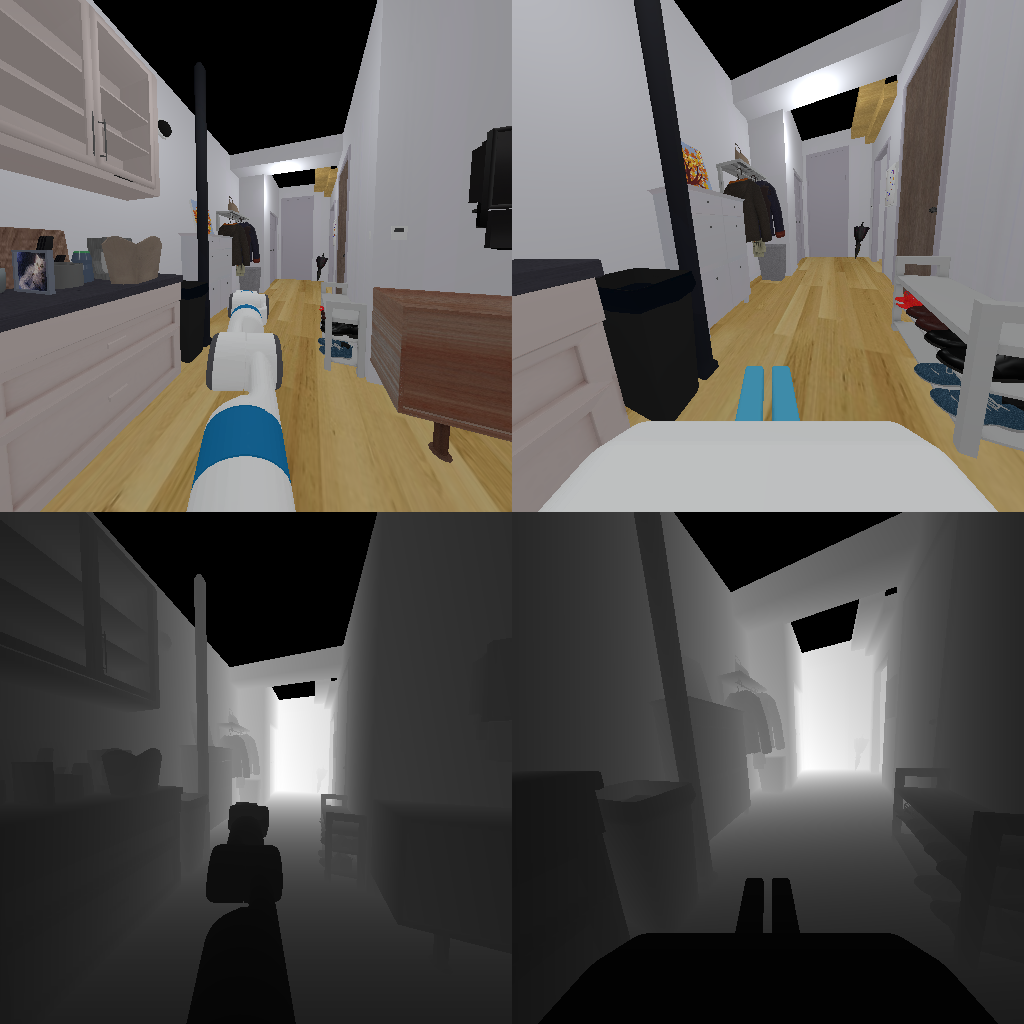
The RGB and depth data visualized can look like below:
pointcloud#
This observation mode has the same data format as the sensor_data mode, but all sensor data from cameras are removed and instead a new key is added called pointcloud. This is specially handled and is different to specifying various textures like done in the previous section.
pointcloud:xyzw: [N, 4],torch.float32, np.float32. Point cloud fused from all cameras in the world frame. “xyzw” is a homogeneous representation.w=0for infinite points (beyond the camera far), andw=1for the rest.rgb: [N, 3],torch.uint8, np.uint8. corresponding colors of the fused point cloudsegmentation: [N, 1],torch.int16, np.uint16. See the Segmentation data section for more details. Note that the point cloud does not contain more information than RGB-D images unless specified otherwise.
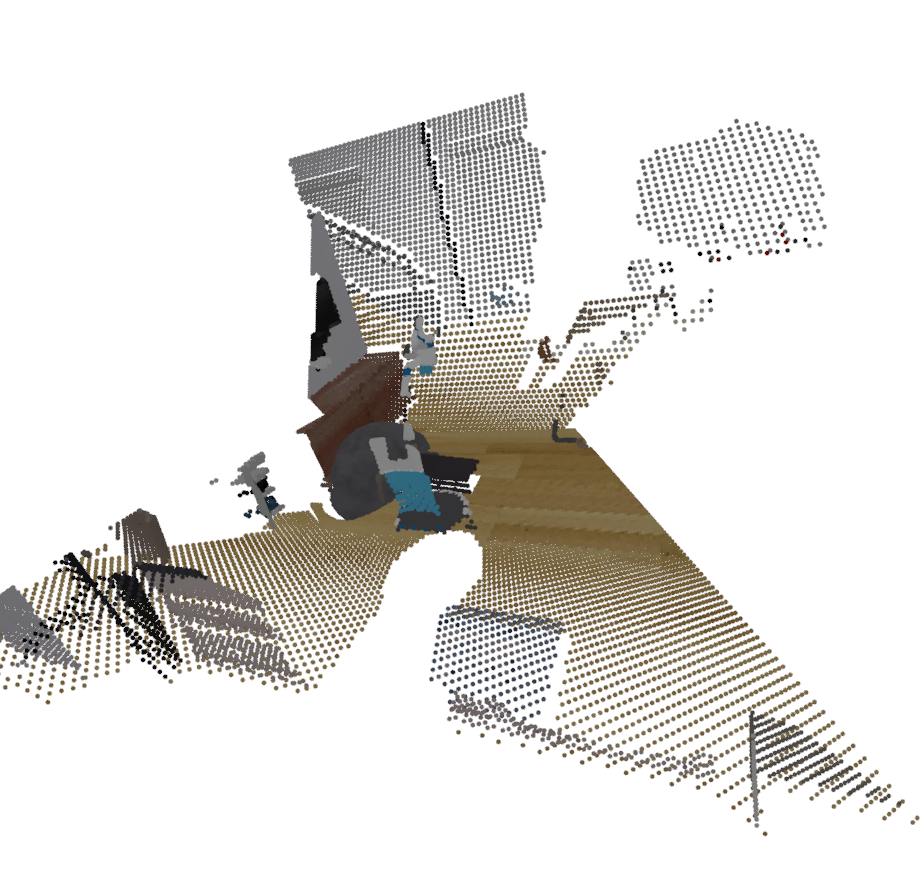
The pointcloud visualized can look like below. Below is the fused pointcloud of two cameras in the ReplicaCAD scene
For a quick demo to visualize pointclouds, you can run
python -m mani_skill.examples.demo_vis_pcd -e "PushCube-v1"
Segmentation Data#
Objects upon being loaded are automatically assigned a segmentation ID (the per_scene_id attribute of sapien.Entity objects). To get information about which IDs refer to which Actors / Links, you can run the code below
import gymnasium as gym
import mani_skill.envs
from mani_skill.utils.structs import Actor, Link
env = gym.make("PushCube-v1", obs_mode="rgbd")
for obj_id, obj in sorted(env.unwrapped.segmentation_id_map.items()):
    if isinstance(obj, Actor):
        print(f"{obj_id}: Actor, name - {obj.name}")
    elif isinstance(obj, Link):
        print(f"{obj_id}: Link, name - {obj.name}")
Note that ID 0 refers to the distant background. For a quick demo of this, you can run
python -m mani_skill.examples.demo_vis_segmentation -e "PushCube-v1" # plot all segmentations
python -m mani_skill.examples.demo_vis_segmentation -e "PushCube-v1" --id cube # mask everything but the object with name "cube"